Shedevrum – Neural Video Creation from Text

Shedevrum (https://shedevrum.ai/) (https://play.google.com/store/apps/details?id=com.yandex.shedevrus&pli=1) aka Masterpiece is a website and mobile-first AI platform that transforms text into animated video using neural networks powered by YandexART and YandexGPT. Designed for creators, marketers, and everyday users, Shedevrum simplifies the video generation process by first rendering a visual frame and then animating it into motion. With support for multiple aspect ratios, music integration, and three evolving model versions (V1.3, V2.0, and beta V2.5), the platform offers a flexible canvas for storytelling.
Users can generate up to 9 videos per day via the website, or unlock unlimited creation and MP4 downloads through the mobile app on iOS and Android. Whether you’re crafting short-form content or experimenting with visual prompts, Shedevrum delivers intuitive tools and neural creativity—right from your phone.
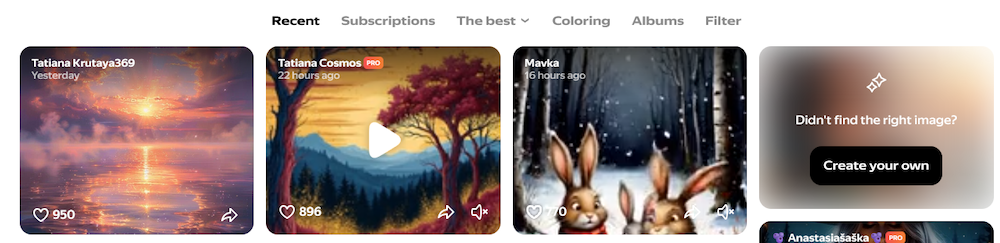
Shedevrum – Text-to-Video with Neural Magic
Shedevrum – Text-to-Video with Neural Magic
- 🧠 Powered by YandexART & YandexGPT – Combines image generation and animation for dynamic video creation
- 📝 Text Prompt Limit – Up to 500 characters per prompt for detailed scene descriptions
- 🖼️ Aspect Ratio Options – Choose from 1:1, 4:3, 3:4, 16:9, or 9:16 formats
- 🎶 Music Integration – Add background music to enhance emotional tone
- 🧬 Model Selection – Use V1.3, V2.0, or beta V2.5 for different rendering styles
- 🎞️ Daily Limits – Generate up to 20 first frames and 9 full videos per day on the website
- 📱 Unlimited in App – No generation limits inside the mobile app (iOS & Android)
- 📥 Download Capability – MP4 downloads available only via the mobile app
- 🖌️ Image + Filter Mode – Upload photos and apply neural filters for stylized transformations
- 🚀 Quick Start – Select “Video,” enter your prompt, generate the first frame, then animate into full video
- 🔗 Multi-Platform Login – Sign up via email, Facebook, Google, Twitter, or other social platforms
Pro Version
Unlock the Pro Version
- 📺 HD & Full HD Output – Generate videos in 720p and 1080p without resolution limits
- 🚫 No Watermarks – Export clean, professional-grade content ready for publishing
- 📝 Extended Prompt Length – Use longer, more descriptive prompts for richer scenes
- 🔁 Unlimited Generations – Remove daily caps and iterate freely across styles and formats
- 📥 MP4 Downloads Everywhere – Save videos directly from both web and mobile platforms
- 🎨 Advanced Style & Motion Control – Access premium animation presets and camera movements
- 🗣️ Voiceover & Lip-Sync – Add narration and synchronize speech with facial motion
- ⚡ Priority Rendering – Skip queues and receive faster output during peak hours
- 🔗 Commercial License & API Access – Use content in monetized projects or integrate generation tools into your own apps
How to Transform Images into Videos Without Glitches or Artifacts
To ensure smooth, artifact-free video generation from static images, follow these best practices:
– 🖼️ Start with High-Quality Source Images
Use clean, well-lit, and high-resolution images. Avoid blurry, pixelated, or overly compressed files, as AI models may exaggerate imperfections during animation.
– 🎯 Match Aspect Ratio to Output Format
Choose the correct aspect ratio (e.g., 16:9 for widescreen, 9:16 for vertical mobile) before uploading. Mismatched ratios can cause stretching, cropping, or unintended framing errors.
– 🎨 Limit Visual Noise and Overlays
Remove excessive text, filters, or background clutter. AI models perform best with clear subjects and defined edges, especially when animating facial features or motion.
– 🧠 Use Prompt Guidance for Motion
If the platform supports text prompts, describe the intended motion clearly (e.g., “slow pan across forest,” “zoom into character’s face”). This helps the model avoid erratic or unnatural transitions.
– 🎥 Choose Standard Camera Motions First
Stick to default pan, zoom, or rotate options when testing. Custom or experimental motions may introduce jitter or frame skipping, especially on free tiers.
– 🗣️ Avoid Overloading with Lip-Sync + Filters
If using auto lip-sync or neural filters, apply them one at a time. Stacking effects can cause rendering conflicts or visual artifacts, especially in beta models.
– 📱 Use Mobile App for Final Export
Platforms like Shedevrum allow MP4 downloads only via mobile. The app often uses optimized rendering pipelines, reducing glitches compared to browser-based previews.
– 🧪 Test Across Models
Try multiple model versions (e.g., V1.3 vs V2.5 beta) to compare output quality. Newer models may offer better realism but can also be less stable under load.
– 🔁 Preview First Frames Before Full Render
Generate the first frame and inspect it carefully. If artifacts appear early, adjust your prompt or image before committing to full animation.