Offline Qwen LLM Setup via OpenRouter API

Don’t waste time waiting for cloud deployments or complex backend frameworks of any LLM, we will use Qwen LLM via OpenRouter allows you to run powerful language models locally or in lightweight browser projects with rapid integration. Here’s how to get up and running using an API key and simple HTML.
👉 Access Qwen on OpenRouter (https://openrouter.ai/)
⚙️ Step-by-Step Setup Guide
- Create Your Account
Head to openrouter.ai and sign up—this gives access to model selection, API key generation, and usage monitoring. - Choose Your Qwen Model
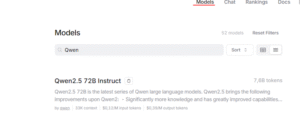
In the model section, search forQwenand select a version from the free stack.
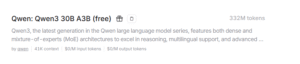
✅ Example: Qwen: Qwen3 30B A3B (free) - Generate Your API Key
Go to the API section of your account and create a new API key.
🔒 This key will be used for authorization when calling the model. - Copy the Model ID
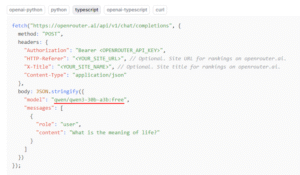
Switch to the TypeScript tab at the bottom of the API section.
🔍 Find and copy the inner model name (e.g.,qwen/qwen3-30b-a3b:free) - Use Your API in Your App
Below is a sample HTML chatbot using the Qwen model via OpenRouter API:<!-- HTML chatbot powered by Qwen --> <script> async function sendMessage() { const input = document.getElementById('userInput').value; const responseDiv = document.getElementById('response'); if (!input) return responseDiv.innerHTML = 'Введите сообщение'; responseDiv.innerHTML = 'Загрузка...'; try { const response = await fetch('https://openrouter.ai/api/v1/chat/completions', { method: 'POST', headers: { Authorization: 'Bearer INSERT_API_KEY', 'HTTP-Referer': 'https://yourdomain.ru/', 'X-Title': 'Your App', 'Content-Type': 'application/json', }, body: JSON.stringify({ model: 'qwen/qwen3-30b-a3b:free', messages: [{ role: 'user', content: input }], }), }); const data = await response.json(); const markdownText = data.choices?.[0]?.message?.content || 'Нет ответа'; responseDiv.innerHTML = marked.parse(markdownText); } catch (error) { responseDiv.innerHTML = 'Ошибка: ' + error.message; } } </script>🔧 Paste this into an
index.htmlfile, insert your API key and model name, and run it in a browser or local editor like Visual Studio Code.
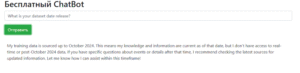
🚀 What You Can Do With It
- Run chatbot frontends
- Build extensions with natural language input
- Develop local testing environments for prompt engineering
- Prototype tools powered by Qwen with zero backend setup
Now, you can experiment with your unlimited free API key.